
In order to execute PowerShell scripts from vRealize Orchestrator, we need to configure a PowerShell host as an endpoint for your vRealize Orchestrator. vRealize Orchestrator which comes embedded with vRealize Automation appliance already has PowerShell Plug-in installed and has all the required workflows available under Library > PowerShell.
Adding PowerShell host to vRealize Orchestrator:
Pre-requisites:
- vRealize Orchestrator with PowerShell Plug-in
- Windows Host – 2 vCPUs & 4 GB RAM, PowerShell PSVersion 5.X, Windows Server 2012 or later (Domain-joined)
- Certificate for Windows Host (if you are using Custom certificates)
- Active Directory User Account – Service Account which should be part of Administrators and Remote Management Users groups on Windows Host.
Configuration Steps:
- Enable PowerShell Remoting on Windows Host by running the command Enable-PSRemoting command. The Enable-PSRemoting cmdlet configures the computer to receive PowerShell remote commands that are sent by using the WS-Management technology.
PowerShell remoting is enabled by default on Windows Server 2012. You can use Enable-PSRemoting to enable PowerShell remoting on other supported versions of Windows and to re-enable remoting on Windows Server 2012 if it becomes disabled. This command has to be run only once on the Windows PowerShell Host.
Increase the amount of memory each PowerShell session is allowed to consume for executing the scripts by running the below command:
winrm set winrm/config/winrs @{MaxMemoryPerShellMB=”2048″}
- Import the Custom Certificate generated by your Certificate Authority to your Windows PowerShell Host. In this example, we are generating a Self-signed certificate (Using a Self-signed certificate is not recommended for the Production environment). Self-Signed certificate can be generated using the below command:
New-SelfSignedCertificate -DnsName YourServerFQDN -CertStoreLocation Cert:\LocalMachine\My
Copy this newly generated Self-signed certificate to Console Root > Certificates > Trusted Root Certification Authorities > Certificates. Note down the thumbprint of the certificate from the Certificate details:
- Create a WinRM HTTPS Listener by running the below mentioned command:
winrm create winrm/config/Listener?Address=*+Transport=HTTPS @{Hostname=”PWShellHost_FQDN“;CertificateThumbprint=”Certificate_Thumbprint”}
Replace PWShellHost_FQDN with the FQDN of your PowerShell Host and replace Certificate_Thumbprint with the thumbprint of the Self-signed certificate generated in the previous step.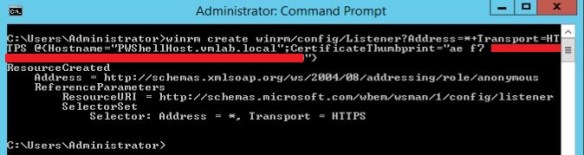
Run the following command to enable Kerberos authentication for WinRM service:
winrm set winrm/config/service/auth @{Kerberos=”true”}
If you need to delete the WinRM HTTPS Listener for some reason, run the below command:
winrm delete winrm/config/Listener?Address=*+Transport=HTTPS @{Hostname=”PWShellHost_FQDN”;CertificateThumbprint=”Certificate_Thumbprint”} - Create an Inbound Windows Firewall Rule on Windows PowerShell Host by running the below command:
New-NetFirewallRule –Direction Inbound –Action Allow –DisplayName “Windows Remote Management [HTTPS-In]” –Description “Inbound rule for Windows Remote Management via WS-Management. [TCP 5986]” –Program “System” –Profile Domain,Private –Protocol TCP –LocalPort “5986” –RemotePort Any
Firewall Rule Details:
Name: Windows Remote Management (HTTPS-In)
Description: Inbound rule for Windows Remote Management via WS-Management. [TCP 5986]
Program: System
Local IP address: Any
Remote IP address: Any
Direction: Inbound
Profile: Domain, Private
Protocol: TCP
Local port: 5986
Remote port: Any - We need to configure vRealize Orchestrator to use Kerberos Authentication. Edit the krb5.conf configuration file on your vRealize Orchestrator server located at path /usr/java/jre-vmware/lib/security/ to specify the domain name and domain controller name. If the file does not already exist, create a new file and paste the contents after modifying as per your requirement in the file:
[libdefaults]
default_realm = DOMAIN.COM
udp_preference_limit = 1
[realms]
DOMAIN.COM = {
kdc = AD-Server.domain.com
default_domain = domain.com
}
[domain_realm]
.domain.com=DOMAIN.COM
domain.com=DOMAIN.COM
Set the permissions of the file krb5.conf to chmod 7777. - Run vRealize Orchestrator workflow Import a certificate from URL located under Library > Configuration > SSL Trust Manager > Import a certificate from URL to import the certificate of the PowerShell Host to vRealize Orchestrator:

There will be couple of warnings thrown at you, just accept all the warnings and verify the Certificate Validity and accept to Import the certificate.


Once the Certificate has been imported successfully, you’ll be able to see the certificate under the CA Keystore:

- Next step is to run the vRO workflow Add a PowerShell Host located under Library > PowerShell > Configuration > Add a PowerShell host workflow to add the Windows PowerShell Host to vRO.
Enter PowerShell Host FQDN under Host, Any reference name under Name and Port should be 5986 for HTTPS connection:
Select WinRM under PowerShell remote host type, HTTPS under Transport protocol, set Accept all certificates to Yes and Authentication type should be Kerberos.
Enter the credentials of Active Directory Service Account which is part of the Administrators and Remote Management Users groups on Windows PowerShell host and select Session mode as Shared Session.
Under Advanced Settings select Shell Code Page as UTF8.
Once Workflow has ran successfully, you’ll be able to see the newly configured PowerShell host under PowerShell plugin in Inventory tab of vRealize Orchestrator.

- Now comes the part we have been waiting for, we can now execute any PowerShell script hosted on this newly configured Windows PowerShell Host. To execute a PowerShell Script we will run the vRealize Orchestrator workflow Invoke an external script located under Library > PowerShell > Invoke an external script.
Select your newly configured Windows PowerShell host under the Host.
Enter the path of the PowerShell script which is hosted on the Windows PowerShell Host and enter any arguments under Arguments section.
Voila!
You are now all set to run all your favorite PowerShell scripts using vRealize Orchestrator.
Happy Scripting!!
https://pagead2.googlesyndication.com/pagead/js/adsbygoogle.js?client=ca-pub-8549655389727719
Great article, couple questions – 1) if you’re using a service account to remote run scripts why do you need a certificate and 2) is it possible to pass variables from a deployment to the powershell script ? I need to populate some reference files with tags and storage policies .
Learning VRO and this helped. My question is how do I call an external script that contains an invoke-command. i.e invoke-command -computer servername -scriptblock {get-service}